


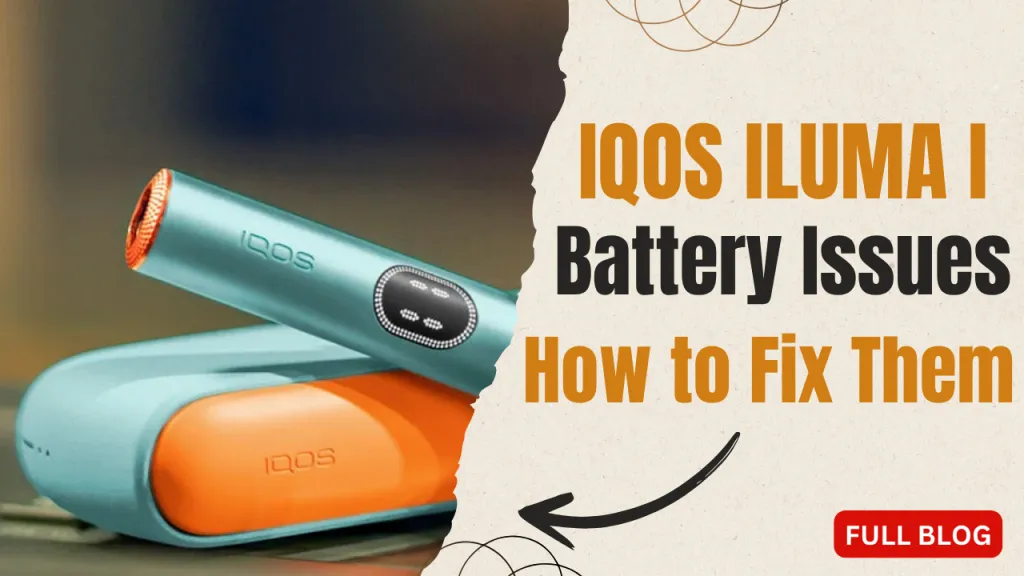
An IQOS ILUMA I device that won’t charge, charges slowly, or drains its battery fast almost always comes down to one of four things: a dirty charging port, a damaged or non-official cable, device overheating, or a firmware glitch. Most IQOS ILUMA i battery charging issues are solved in a few minutes without any tools.
For charging times, Pause Mode, cleaning and reset steps for every model, see our IQOS ILUMA care and charging guide.
How Do IQOS ILUMA I, ILUMA I One, and i Prime Compare on Charging?
All three devices run on lithium-ion batteries, but the amount of use you get per charge differs by model. The IQOS ILUMA I and IQOS ILUMA I One typically deliver 20 to 25 Terea sticks per full charge, while the IQOS ILUMA i Prime holds slightly more capacity and supports up to 30 sticks before it needs to go back on the charger.
Charge Time and Capacity by Model
| Device | Sticks per full charge | Battery type | Full charge time |
|---|---|---|---|
| IQOS ILUMA I | 20 to 25 | Lithium-ion | Roughly two hours with the official charger, per official guidance |
| IQOS ILUMA I One | 20 to 25 | Lithium-ion | Roughly two hours; compact holder is more sensitive to port dust |
| IQOS ILUMA i Prime | Up to 30 | Lithium-ion | Larger capacity; budget for a similar cycle length until confirmed for your unit |
Which Model Suits Your Charging Habits?
Heavier daily users who want fewer charging interruptions may prefer the IQOS ILUMA I Prime category for its higher per-charge capacity. Anyone who prioritizes a smaller, pocket-friendly holder can stay with the IQOS ILUMA I One category or the IQOS ILUMA I Standard lineup instead.
Finish and color don’t change charging behavior. Options such as IQOS Iluma I Standard orange, IQOS Iluma I Standard Black, and IQOS Iluma I One Blue follow the same charging steps covered below. Shoppers weighing the higher-capacity Prime can compare an IQOS ILUMA I Prime Garnet Red against an IQOS ILUMA I Prime Aspen Green using the breakdown.
Which Charging Problem Do You Actually Have?
Battery complaints usually fall into one of four patterns: the device won’t power on at all, it charges slower than usual, a full charge only lasts a handful of sticks, or it gets noticeably hot while plugged in. Pinning down the exact symptom before reaching for a reset determines which fix to try first.
- Won’t power on: often a fully drained battery or a blocked charging port rather than a dead battery.
- Slow or inconsistent charging: usually a dirty port, a worn cable, or charging in a hot spot.
- Fast battery drain: commonly linked to frequent full discharges, heat exposure, or a battery that is simply aging.
- Overheating while charging: mild warmth is normal, but noticeable heat points to using the device while it’s plugged in or charging it in direct sunlight.
IQOS ILUMA i Prime Breeze Blue vs. Aspen Green: Which One Fits Your Style?
How Does IQOS ILUMA Charging Actually Work?
IQOS devices run on lithium-ion cells that reach a full charge in roughly two hours with the official charger, supporting around 20 uses per cycle according to official IQOS guidance. The IQOS ILUMA I and IQOS ILUMA I One sit close to that figure at 20 to 25 sticks, and the IQOS ILUMA i Prime extends slightly beyond it thanks to its larger cell.
LED Status While Charging
An LED indicator communicates status throughout the cycle: it stays lit while charging is in progress and turns solid green once the battery is full. Disconnecting the device as soon as that green light appears, rather than leaving it plugged in indefinitely, is one of the simplest habits for keeping the battery healthy long term.
What Causes Battery Charging Issues in IQOS ILUMA I Devices?
Most ILUMA I charging failures trace back to four causes: a blocked or dusty charging port, a damaged or non-official cable, heat exposure during charging, and firmware glitches that interrupt the charge cycle. Each has a distinct fix, which is why a generic reset doesn’t always solve it.
- Dirty charging port: dust, lint, or sand, common in the UAE’s outdoor conditions, blocks the metal contacts from making a full connection.
- Non-official or damaged cable: third-party cables and frayed or bent connectors can deliver inconsistent power and, over time, stress the battery permanently.
- Heat exposure: charging in direct sunlight, inside a car, or in a closed bag restricts airflow and can trigger the device to slow or pause charging as a protective measure.
- Firmware glitches: occasional software hiccups interrupt a charge cycle even when the hardware is fine, which a reset or update usually resolves.
Step-by-Step Fixes for an ILUMA I That Won’t Charge
Work through these five steps in order before assuming the battery itself has failed.
- Inspect the charger and cable. Use only an official IQOS charger. Check for frayed wires, bent connectors, or a loose plug, and swap in a spare official cable if you have one to rule that out.
- Clean the charging port. Use a soft, dry brush or a short burst of compressed air to clear dust or lint. Never insert metal objects, which can scratch or bend the contacts.
- Check the holder is seated correctly. On models with a separate holder and pocket charger, a holder that isn’t fully clicked into place will show as a charging failure even though nothing is actually broken.
- Let the device cool, then reset it. If it feels warm, leave it disconnected for a few minutes in a cool spot before trying again, then run through the reset sequence below.
- Charge in a cool, ventilated spot. Avoid direct sunlight, closed bags, and car interiors, all of which slow charging or trigger a protective heat cutoff.
The comparison in IQOS ILUMA Standard vs Iluma I Standard: Which One Should You Buy in UAE looks at these differences beyond charging alone.
How Do You Reset an IQOS ILUMA I Device?
A reset clears minor firmware issues that can interrupt charging without indicating any hardware fault. Hold the device’s power button for the duration specified in its manual, usually several seconds, until the LED cycles or the device vibrates, then release and reconnect the charger to confirm normal behavior has returned.
If the device still won’t charge after a reset, disconnect it, let it sit for a few minutes, and try a full charging cycle again with a different official cable if one is available. Running this sequence twice before escalating rules out a one-off glitch versus a repeating fault.
What Does a Blinking or Red LED Actually Mean?
Blinking vs Persistent Red Light
A blinking LED during charging is usually just an active charging cycle in progress, not the same fault as a device that won’t power on at all. It’s a normal part of the cycle and doesn’t need any action on its own.
A steady or repeated red pattern that persists after cleaning the port, swapping the cable, and resetting the device points to a charging fault that needs attention rather than another round of troubleshooting.
When Should You Stop Troubleshooting and Contact Support?
Stop DIY fixes and contact official support if the device still won’t charge after cleaning the port, trying an official cable, resetting, and charging in a cool spot, or if you notice swelling, an unusual smell, or heat that doesn’t subside once unplugged. These signs point to a battery or hardware fault beyond a simple reset.
Continuing to charge a device that shows these signs risks further damage. It’s a reasonable point to stop, unplug it, and get professional confirmation rather than repeating the same steps.
Protect your IQOS ILUMA from everyday wear. how dust, sand, and UAE heat can affect the charging port in our detailed guide.
How to Store and Maintain the Battery for the Long Term
A few simple habits do more for battery lifespan than any single fix. Charge only with an official charger, disconnect once the LED turns solid green, and avoid leaving the device plugged in longer than necessary. Partial charges are fine day to day; there’s no need to wait for the battery to hit zero before topping it up.
Storage Tips for Extended Downtime
- Store the device at roughly 50 percent charge if it won’t be used for several weeks.
- Keep it away from direct sunlight, heat, and humidity, including car interiors and closed bags.
- Clean the charging contacts monthly to prevent dust build-up from causing intermittent charging.
- Keep firmware updated, since updates improve battery management and can resolve charging glitches on their own.
This storage guidance applies regardless of finish, whether you’re using an IQOS Iluma I One Violet or an IQOS Iluma I Standard Blue.
Keeping Your ILUMA I Charging Reliably
Most charging complaints on IQOS ILUMA I devices trace back to a dusty port, a worn or unofficial cable, heat exposure, or a firmware hiccup, not battery failure. Working through the port, cable, reset, and cooling checks above resolves the majority of cases without any need to contact support.
If you’ve been through every step here and the device still won’t hold a charge, or if you notice swelling, persistent heat, or an unusual smell, stop charging it and reach out to official support rather than repeating the same fixes. For everyday care between now and then, keep an official charger on hand and give the contacts a monthly clean.
the Device Care and Maintenance Guide for IQOS ILUMA Users in UAE covers broader upkeep beyond charging alone.
This product contains nicotine, which is an addictive substance.
Frequently Asked Questions
Is it safe to use a non-official charger with an IQOS ILUMA I device?
Using a non-official charger or cable with an IQOS ILUMA I device is not recommended, since inconsistent power delivery from third-party accessories can damage the battery over time and may cause charging failures that look like a hardware fault. Sticking to an official charger avoids this risk entirely.
Can a software glitch really stop an IQOS ILUMA I from charging?
Yes, a firmware glitch can interrupt an IQOS ILUMA I’s charge cycle even when the port, cable, and battery are all working correctly. A standard reset, held via the power button as described in the device manual, usually clears this type of glitch without further action.
How long should an overheated IQOS ILUMA I cool down before charging again?
Let an overheated IQOS ILUMA I sit disconnected in a cool, shaded spot for a few minutes until it no longer feels warm to the touch before reconnecting the charger. Charging a device that’s still hot can trigger a protective slowdown or repeat the overheating cycle.
Does a blinking LED always mean the ILUMA I battery is failing?
No, a blinking LED on an IQOS ILUMA I usually just indicates an active charging cycle rather than a failing battery. Only a persistent red pattern that continues after cleaning the port, trying a different official cable, and resetting the device signals a fault worth contacting support about.